Before you start
You need Chrome or a compatible Chromium browser, YouTube Music, and OBS Studio. This guide uses that setup to get lyrics on screen for the first time.
Install StreamLyric
Open the StreamLyric extension page and follow the browser prompts to install it.
Then open YouTube Music in the same browser profile where you installed the extension.
Play a song and find "OBS lyrics"
Play a song in YouTube Music and find the "OBS LYRICS" tab on the right side of the player. This is where StreamLyric lives.
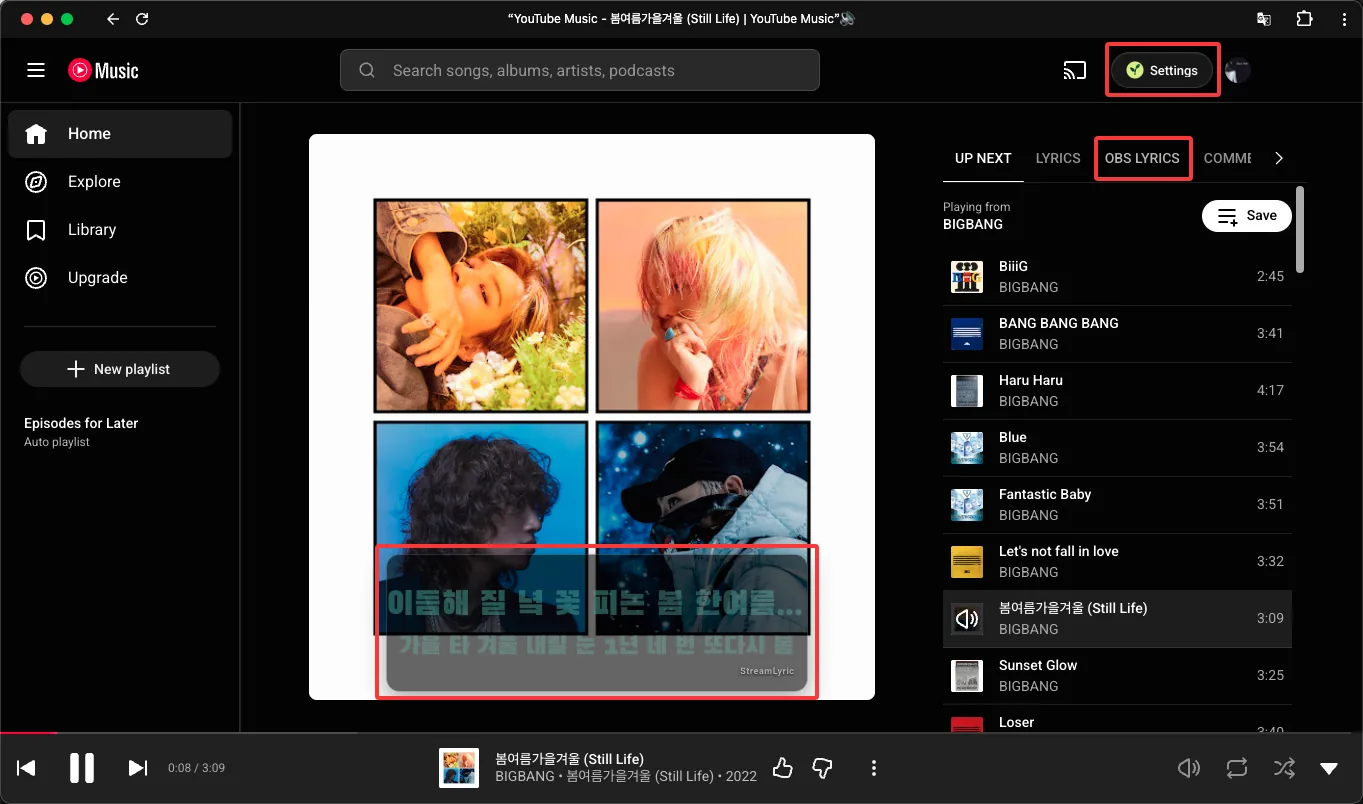
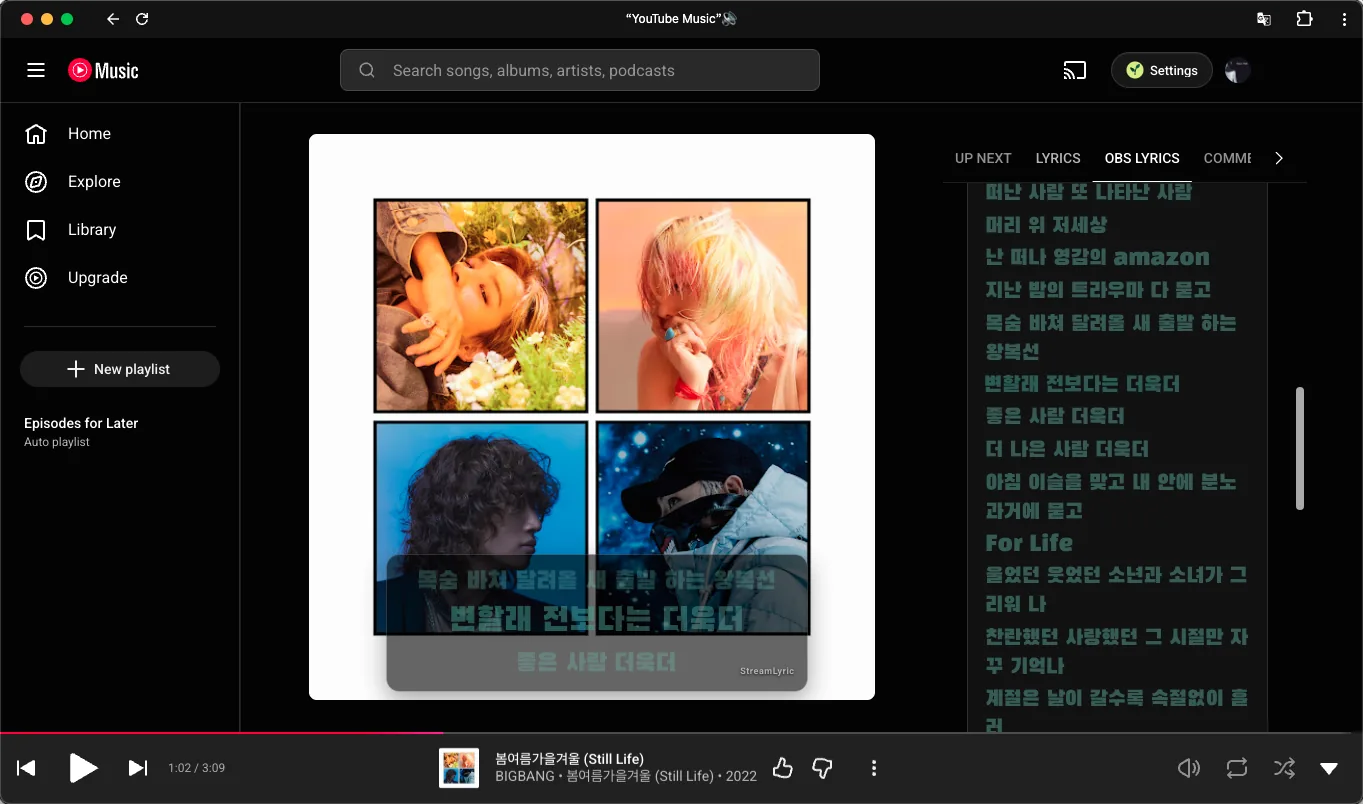
First make sure lyrics appear on the page. For songs with synced lyrics, the current line follows the song as it plays.
Pick a lyric style for your stream
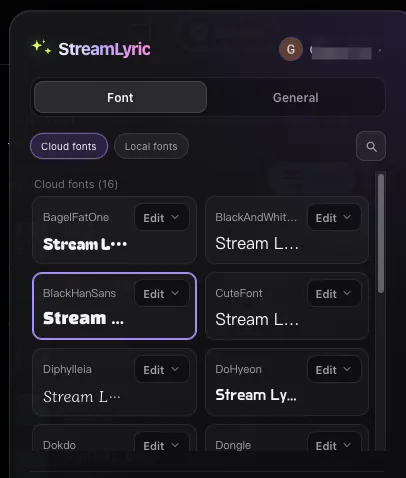
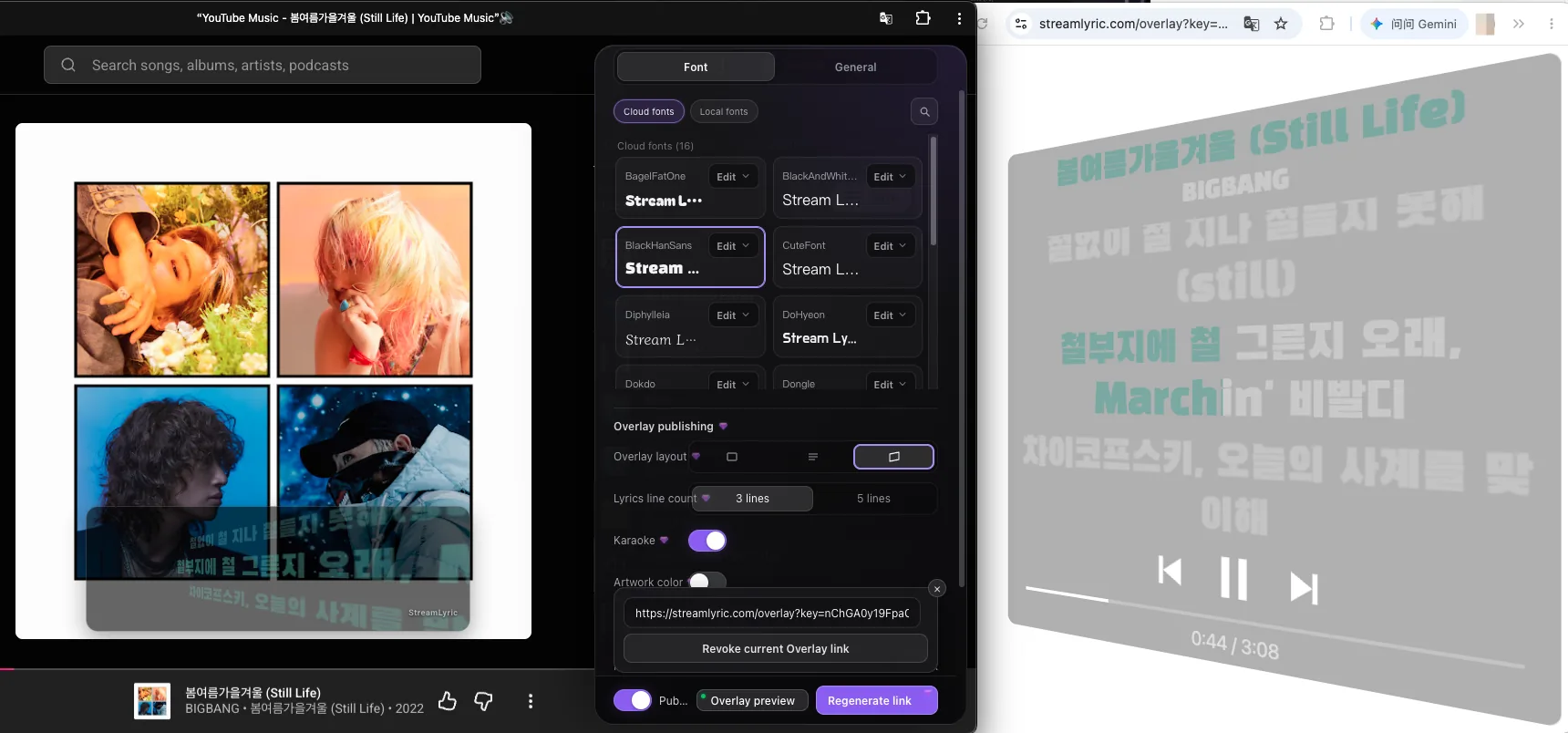
Open StreamLyric settings and click a style card on the "Fonts" tab to change the lyric font. Use the search box to find a style; cards with an "Edit" button can be fine-tuned.
Sign in and copy your lyrics link
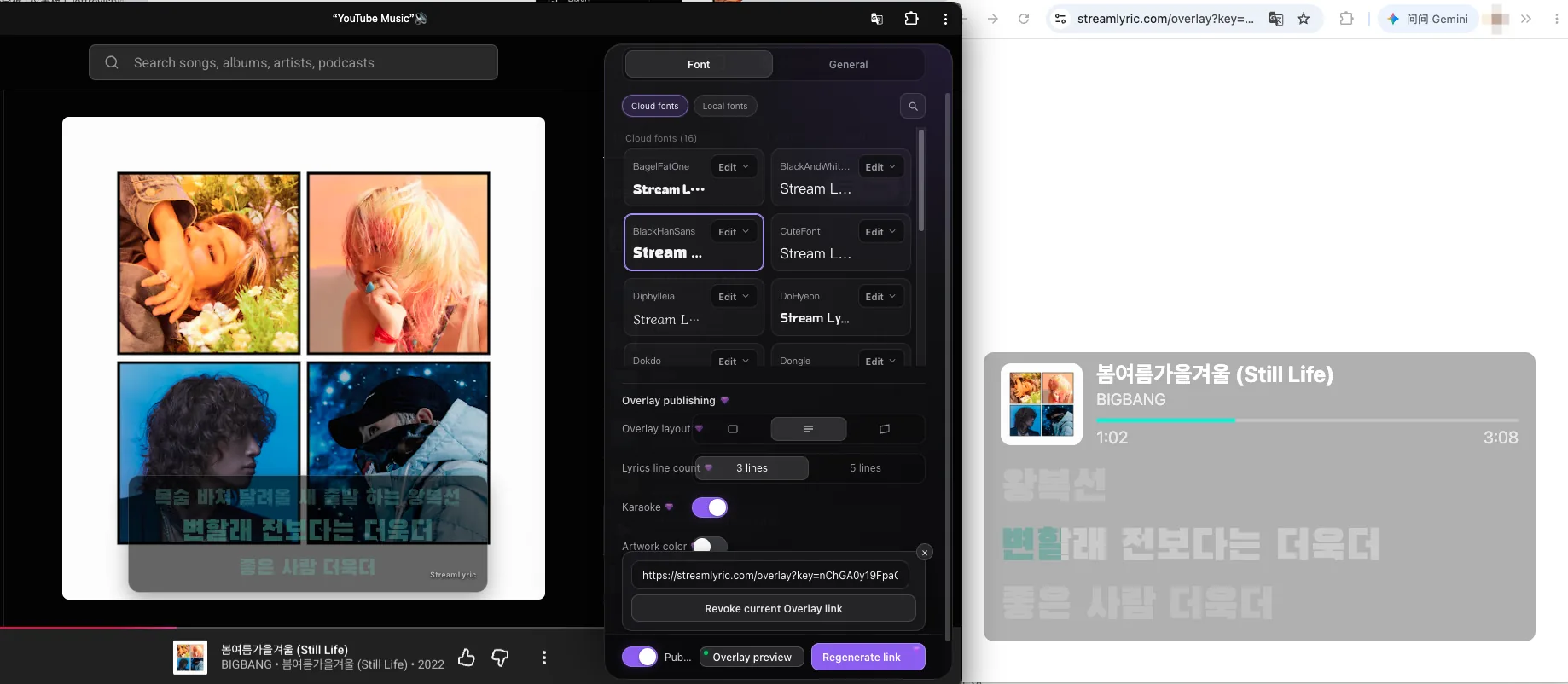
To show lyrics to your viewers, sign in to StreamLyric and get an Overlay link. Think of it as your private address that OBS uses to load the lyrics.
- Go to the StreamLyric sign-in page and sign in.
- Back in the extension's "OBS lyrics" area, choose the lyric style you want.
- Click "Copy link" to copy the Overlay address.
Add the lyrics to OBS
Open OBS and select the scene you stream with:
- In "Sources", click + and choose "Browser".
- Create a new source and name it "Stream lyrics".
- Paste the Overlay link you copied into "URL".
- Set width and height to match your stream canvas, then click "OK".
| Stream layout | Width | Height |
|---|---|---|
| Landscape 16:9 | 1920 | 1080 |
| Portrait 9:16 | 1080 | 1920 |
For other resolutions, enter your actual canvas size. For the first test, leave "Shutdown source when not visible" unchecked.
Once added, move the lyrics in the OBS preview so they do not cover your face. If the camera hides the lyrics, drag the "Stream lyrics" source above the camera source.
Run a quick test before going live
Keep the browser and YouTube Music running, then test:
- Pause and resume: check that the lyrics follow.
- Seek within the song: check that synced lyrics update.
- Switch songs: check that the lyrics change to the new song.
When everything works, close the OBS source properties window and start streaming.
FAQ
Why do some songs have no lyrics?
Lyric coverage differs by song, version, and region. Try another song or version, and first check that lyrics show on the YouTube Music page.
Lyrics show in the browser but not in OBS. What now?
Refresh the OBS browser source and check that the Overlay link is valid. If you generated a new link, update it in OBS.
Why are lyric updates delayed?
The free plan updates about every 8 seconds, so some delay is possible. Trial and Pro use a real-time connection first.
The lyrics have a black background. How do I fix it?
Check the Overlay transparent background setting and make sure you are using an OBS "Browser" source. Lyrics should sit directly on top of your scene.
Does YouTube Music need to stay open while streaming?
Yes. Keep the browser and YouTube Music page playing the song open; the lyrics depend on the current playback state.
Can I use the free plan?
The free plan includes the core lyrics features and a watermarked stream Overlay. Karaoke, 3D rotation, and other effects come with a trial or Pro.
Start with your first song
Install the extension, check that lyrics appear, then bring your favorite lyric style into your stream.